Symbol Factory is library of over 3800 symbols you can use in your application and is included in DAQFactory Pro and higher. You can open this library by selecting Tools - Symbol Factory. This will open the symbol factory browser application which is an easy to use product for viewing all the symbols. You can flip or rotate the symbols, change the coloring, and even import your own symbols into the library. Any time a symbol is copied over to DAQFactory it is placed inside a Symbol Component. Please see section 7.18.2.3 for more information on this component.
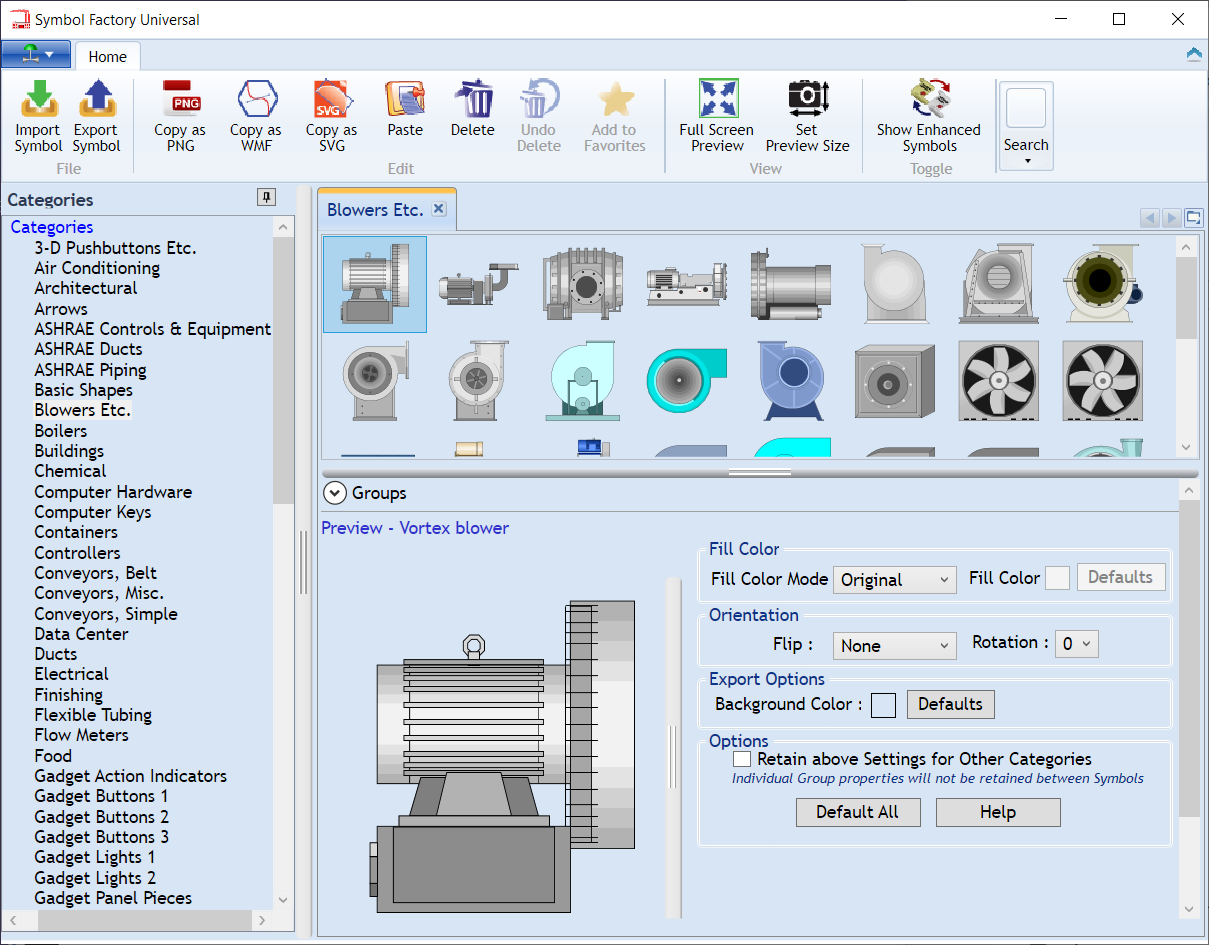
The symbols in Symbol Factory fall into two groups: enhanced and basic symbols. You can switch between them by clicking the Show Enhanced Symbols in the toolbar.
Enhanced Symbols are newer symbols that use the enhanced features of SVG to offer things like smooth shading that make the symbols look a lot better. Enhanced symbols can be copied over to DAQFactory either as a vector SVG file or a PNG by clicking either the Copy as SVG or Copy as PNG button in the tool bar. SVG is a vector format and will scale and rotate easily and cleanly. PNG is a raster format and so does not scale very well. In almost all cases, SVG will be preferred over PNG.
Basic Symbols are the symbols from the original Symbol Factory that was included in earlier releases of DAQFactory. Basic symbols can also be copied to DAQFactory as WMF. WMF is a vector format like SVG and so is scalable and rotatable. In addition, WMF is the only format that DAQFactory can do split colors with. Split colors allows you to color the symbol partially based on the result of an expression. In general you will want to use Enhanced symbols unless you need to do split colors with a symbol. Use the Copy as WMF button in the tool bar to copy the displayed symbol in WMF format.
Once copied, you can paste the symbol onto any page in DAQFactory, or into the Symbol property of an existing Symbol Component. You can also put symbols into DAQFactory using the drag and drop method. From the Symbol Factory, simply click on a symbol and drag the symbol onto the Control Page. The cursor will change when you are over the page. Release the mouse where you want the symbol dropped. This method is very quick for placing multiple symbols from Symbol Factory. Note that symbols copied over using drag and drop are copied as SVG unless the symbol itself is bitmap in which case it is copied as a PNG. If you need to specify a particular format (such as WMF), use the copy method.
