The OPC-UA device allows you to communicate with any OPC UA server, either on the local computer or across the network. OPC UA is the successor to the older OPC-DA standard described in the previous section. Unlike OPC-DA, it does not use DCOM, so there is no DCOM configuration to work through, and connecting to a server on another computer is usually just a matter of knowing its address. A server is identified by an endpoint URL of the form opc.tcp://host:port, for example opc.tcp://192.168.0.50:4840. Most PLCs, gateways and SCADA packages sold today either include an OPC UA server or offer one as an option.
DAQFactory acts as an OPC UA client. The OPC UA device is built in and always appears in the Device Type list. It does require OPCUA.dll, which is installed into the DAQFactory program directory along with DAQFactory itself. If that file is missing or damaged you will see "OPCUA: OPCUA.dll failed to load or is missing required exports" in the Command / Alert window and no tags will read.
Note: This release connects to servers using an unencrypted, anonymous connection (what OPC UA calls SecurityMode None). Servers that only offer signed or encrypted endpoints, or that require a user name and password, will refuse the connection. When that happens DAQFactory asks the server what it does offer and reports it once in the Command / Alert window, so you can see what the server actually requires. See Troubleshooting below.
Device Configurator:
The quickest way to get data in is the device configurator, which browses the server and creates channels for you. Select Quick - Device Configuration... from the main menu, then select OPCUA from the list.
You will first be asked for the server to connect to:
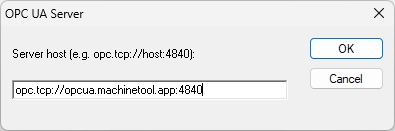
Enter the endpoint URL of your server, for example opc.tcp://192.168.0.50:4840. DAQFactory remembers what you enter here and offers it again the next time, so you normally only have to type it once.
After clicking OK, the browse window will appear:
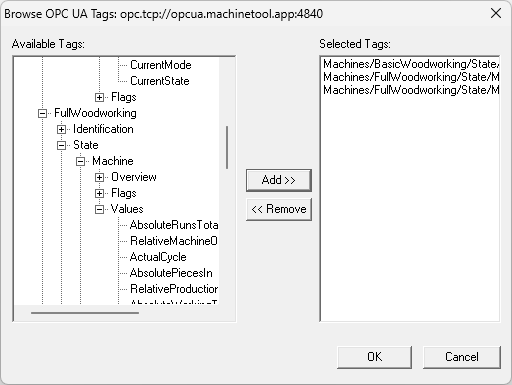
The tree on the left, labeled Available Tags, shows the contents of the server. Folders and objects can be expanded by clicking the + next to them; DAQFactory only asks the server for one level at a time, so even a server with a very large address space opens quickly. The individual tags are the items without a +.
To select a tag, click on it and click Add >>, or simply double click it. It will appear in the Selected Tags list on the right. You do not have to add tags one dialog at a time - keep browsing and adding until you have everything you want. To take one back off the list, select it and click << Remove. Only actual tags can be added; folders and objects are there to browse through.
When you click OK, DAQFactory creates one channel for each tag in the list. Each channel is given the name of the tag with any characters that aren't valid in a DAQFactory channel name removed, and a number is added to the end if that name is already in use. The channels are created with the Read Async I/O type and a Timing of 1, which is what you want in most cases. You can rename the channels, put them in groups, and set conversions on them exactly like any other channel.
Creating channels by hand:
You can also create OPC UA channels directly in the channel table. Click on CHANNELS: in the workspace, click Add, and set the Device Type to OPCUA.
The D # and Chan # columns are not used by this device and can be left at 0. The tag is identified instead by the OPC Specifier - the column at the far right of the channel table, which is the Quick Note field for other devices. Click the button at the right of that field to open the same browse window described above. If the channel already names a tag, the browse window opens with that tag already selected so you can see where it sits and pick a replacement nearby. If the channel is new and has no server yet, you will be asked for the server first. In this mode a single click on Select, or a double click on the tag, chooses the tag and closes the window.
I/O types:
Read Async: DAQFactory subscribes to the tag and the server sends a new value whenever the value changes. This is the preferred method and the one the configurator uses.
Read Numeric Value: DAQFactory reads the tag every time the channel is polled, whether the value has changed or not. Despite the name, this I/O type also handles string and array tags.
Write Numeric Value: setting the channel writes the value out to the tag.
Because an async tag only produces data when it changes, there may be gaps in a logged data set where nothing happened. To avoid this, specify Duplicate Last Value in your logging set.
The tag specifier:
The OPC Specifier field holds the server and the tag, separated by a tilde:
opc.tcp://192.168.0.50:4840~ns=2;s=Boiler.Temperature
The part after the tilde is a standard OPC UA NodeId. It usually looks like ns=2;s=SomeName (a string NodeId) or ns=2;i=1234 (a numeric one), and is whatever your server uses. You do not normally have to type any of this - the browse window fills it in for you - but it is plain text and can be built in script or edited by hand if you are setting up a lot of similar channels.
For Read Async channels you can optionally add a third part to control how fast the server samples that tag:
opc.tcp://192.168.0.50:4840~ns=2;s=Boiler.Temperature~0.1
The number is in seconds, so this asks the server to look at the tag ten times a second and tell DAQFactory whenever it has changed. If you leave it off, the tag is sampled once a second. The fastest rate accepted is 0.05 seconds (50 milliseconds); anything faster is treated as 0.05. The extra part is only recognized when it is a plain number, so an ordinary NodeId is never mistaken for a rate. Each tag has its own rate, and changing it simply re-subscribes that tag at the new rate.
Note: for an async channel, the channel's Timing does not determine how often data arrives - the rate above does. Timing controls how often DAQFactory checks that the subscription is still in place, which is a very cheap operation. Leave it at 1 second. It must not be 0, though: a channel with a Timing of 0 is never polled at all, so it would never subscribe and would never receive anything. For Read Numeric Value and Write Numeric Value channels, Timing has its usual meaning.
Data types:
Values coming from the server are handled as follows:
Numeric tags of any type - integer, floating point, and so on - arrive as ordinary DAQFactory values. As with all other devices, once the data is inside DAQFactory it is treated as a 64 bit floating point value.
Boolean tags arrive as 1 and 0.
String tags arrive as string values, and can be displayed and logged like any other DAQFactory string data.
Date and time tags are converted to seconds since 1970, which is the same format DAQFactory uses for its own time stamps, so they can be used directly with the various time functions.
Array tags arrive as an array of values on a single channel, the same way spectrum data does. Multi-dimensional arrays are flattened into a single row of values. An array of strings cannot be brought in on a channel; use Device.OPCUA.ReadValue(), described below, if you need one.
Writing is more limited. A Write Numeric Value channel can write to numeric and boolean tags only, one value at a time. The value you set is converted to whatever type the tag actually is on the server, so setting a channel to 1 or 0 is the correct way to write to a boolean tag. Values are sent with six decimal places of precision. Strings and arrays cannot be written. If a write fails, the channel is left at its previous value and the reason appears in the Command / Alert window.
Functions:
The OPC UA device provides several functions that can be called from sequences and expressions. They are useful for reading a tag on demand rather than continuously, for setting up subscriptions from script, and for keeping an eye on the connection.
Device.OPCUA.ReadValue(specifier)
Reads a tag immediately and returns its value. The specifier is the same server-and-tag string described above. Scalars, strings and arrays are all returned, including arrays of strings. The function waits for the server to answer, so it will hold up the sequence it is called from for as long as the read takes. Example:
private temp = Device.OPCUA.ReadValue("opc.tcp://192.168.0.50:4840~ns=2;s=Boiler.Temperature")
Device.OPCUA.WriteValue(specifier, value)
Writes a single numeric or boolean value to a tag, with the same limitations as the Write Numeric Value I/O type. Example:
Device.OPCUA.WriteValue("opc.tcp://192.168.0.50:4840~ns=2;s=Pump.Enable", 1)
Device.OPCUA.SubscribeDataChange(specifier, interval, dataType, channelName)
Subscribes to a tag from script instead of from a channel's I/O type. The interval is the sampling rate in seconds, as described above. dataType and channelName are optional; channelName is the name of the channel that new values should be placed in, and without it the values have nowhere to go. This is the same mechanism a Read Async channel uses, so in most applications you will not need to call it directly. Example:
Device.OPCUA.SubscribeDataChange("opc.tcp://192.168.0.50:4840~ns=2;s=Boiler.Temperature", 0.5, "double", "BoilerTemp")
Device.OPCUA.BrowseDialog(host)
Opens the browse window against the given server and returns the tags you select as an array of specifier strings. Because it opens a window and waits for you, it is meant for building your own configuration screens, not for use in a sequence that runs unattended.
Device.OPCUA.IsConnected(host)
Returns 1 if DAQFactory currently has a live connection to that server and 0 if it does not. Note that this takes just the server, with no tilde and no tag. It does not go out to the network, so it is inexpensive enough to use in a running sequence or behind an indicator light on a page. Example:
if (Device.OPCUA.IsConnected("opc.tcp://192.168.0.50:4840") == 0)
? "OPC UA server is offline"
endif
Device.OPCUA.ResetConnection(host)
Forces the connection to that server to drop and reconnect. DAQFactory reconnects on its own after a network interruption, so this is only needed on the rare occasion when a connection appears to be stuck - IsConnected() keeps returning 0, or data has stopped arriving, and it is not recovering by itself. Any subscribed tags resume automatically at their existing rates once the connection comes back; you do not have to re-subscribe them.
Device.OPCUA.ClearAsync(host)
Removes every subscription on that server, both in DAQFactory and on the server itself. This is a housekeeping function: if you delete or rename a number of async channels while DAQFactory is running, the subscriptions they created are left behind on the server, and this clears them out without having to restart DAQFactory. Your remaining Read Async channels re-subscribe themselves within a second or two; any tags you subscribed from script with SubscribeDataChange() must be subscribed again. The server is optional - Device.OPCUA.ClearAsync() with no arguments clears every server.
Troubleshooting:
All OPC UA problems are reported in the Command / Alert window. DAQFactory reports each connection going up or down once, so a line such as "OPCUA: opc.tcp://192.168.0.50:4840 disconnected" followed later by a matching "connected" is normal after a network interruption and does not need any action. This is also the answer to the most common question about async channels: if no data is arriving, the alert window is what tells you whether the value simply hasn't changed or the server is unreachable.
Failures are reported with the OPC UA status code and its name, for example 0x80340000 (BadNodeIdUnknown). The ones you are most likely to see:
BadNodeIdUnknown or BadNodeIdInvalid: the server does not have a tag by that name. Usually a hand-edited specifier, or a tag that has been renamed or removed on the server. Open the browse window from the channel's OPC Specifier field and pick the tag again.
BadConnectionRejected, BadTimeout or similar: the server could not be reached at all. Check the address and port, that the server is running, and that no firewall is in the way.
BadUserAccessDenied, BadIdentityTokenRejected, BadSecurityPolicyRejected, BadCertificateUntrusted: the server was reached but would not accept the connection. When this happens DAQFactory asks the server for its endpoint list and reports it once, in a line beginning "OPCUA: opc.tcp://... offers --", showing the security modes, policies and login types the server accepts. If everything it offers is signed or encrypted, or requires a user name, this release cannot connect to it; many servers can be configured to allow an unencrypted anonymous endpoint as well.
BadTypeMismatch on a write: the tag is not a type this device can write, such as a string or a date.
Note: reads, writes and browsing are done one at a time across the whole application, so a slow or unreachable server can hold up a read from a different server for as long as it takes to time out. Subscriptions are not affected by this, which is another reason to prefer Read Async channels for anything you are polling continuously.